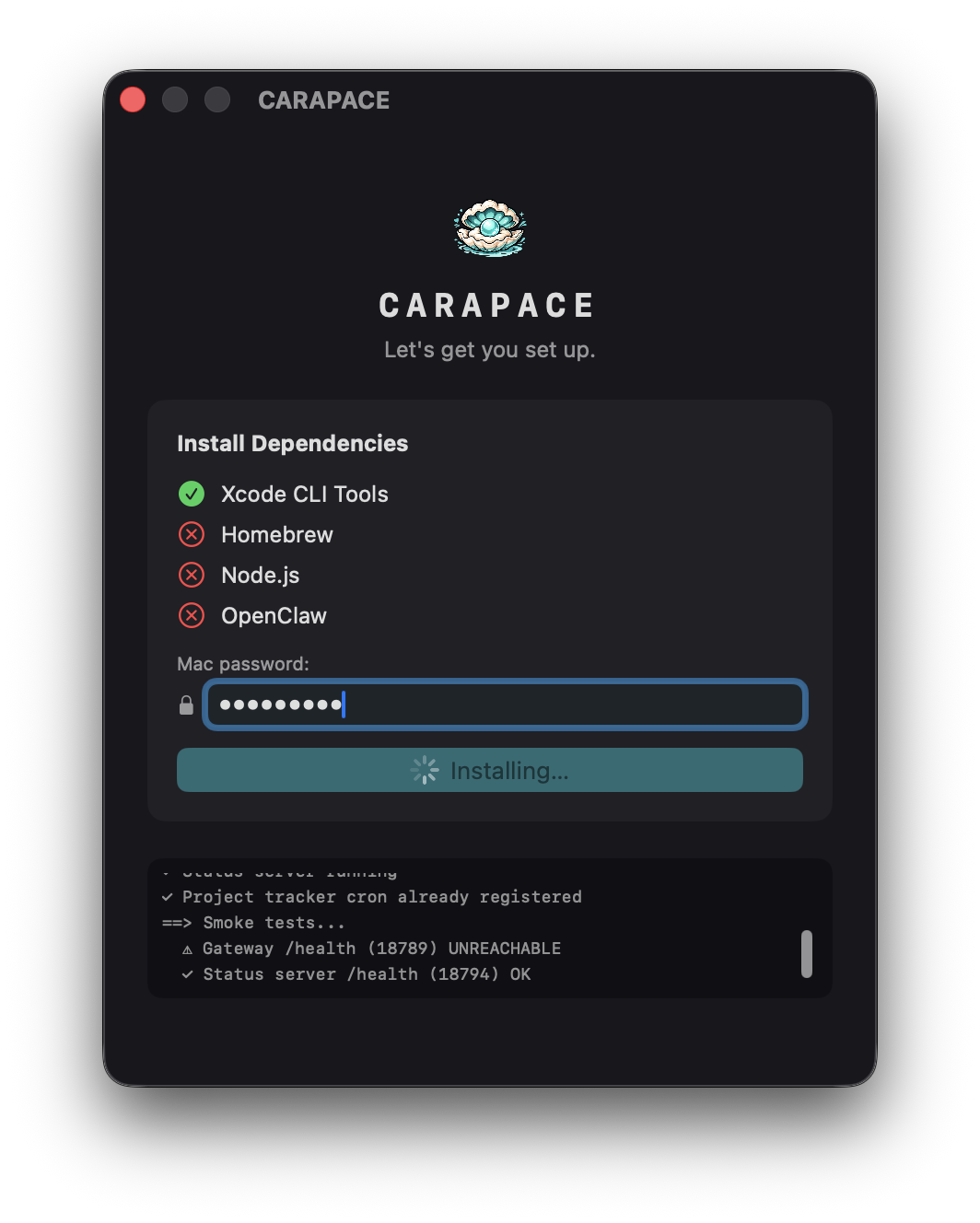
Mac install

Choose OpenClaw, Hermes, or both.

The Mac app is the guided path for OpenClaw and combined installs. Hermes support is also available standalone: choose Hermes support only in the wizard, or use the one-line Hermes addon if you do not want OpenClaw on that Mac.

Recommended path
1Download the DMG and open CARAPACE.
2Choose OpenClaw, Hermes support only, or Both in the setup wizard.
3Sign in to Tailscale, choose provider auth, then scan the QR in the iPhone app.
CARAPACE Mac setup wizard
1

Run the Mac wizard

CARAPACE installs and configures the local pieces for the runtime path you pick: OpenClaw, standalone Hermes support, or both, plus Tailscale-secured pairing.

mac install
Open Carapace-2.0.13.dmg
Drag CARAPACE to Applications
Launch CARAPACE and follow the setup wizard
2

Pick the right runtime

Choose OpenClaw for the normal full CARAPACE install. Choose Hermes support only for a standalone Hermes runtime on this Mac. Choose Both if you want OpenClaw plus Hermes on the same Mac with one iPhone machine toggle.

3

Pair once, switch later

The QR can carry OpenClaw and Hermes sibling runtimes for the same physical machine. The iPhone app shows one machine entry with an OpenClaw / Hermes toggle when both are present.

4

Provider setup

OpenClaw can use ChatGPT OAuth, Gemini keys, or advanced custom provider config. Hermes uses its own CLI/provider setup and CARAPACE only exposes it through the bridge.

5

What gets preserved

The installer is designed to be non-destructive. Existing OpenClaw state, workspace memory, Tailscale setup, and Hermes bridge state are not wiped by normal reruns.

6

If something goes wrong

Open CARAPACE from the menu bar, show the QR again, or rerun setup. For deeper issues, check Tailscale is on for Mac and iPhone, then verify the gateway is reachable.