Install Tailscale.
Your iPhone talks to your gateway over a private Tailscale mesh — no open ports, no dynamic DNS, works behind any NAT. Install the Tailscale app on your iPhone and sign in with the same account you used on your gateway machine.
- Download Tailscale for iOS from the App Store (free)
- Sign in with the same Google / Microsoft / GitHub account your gateway uses — not a different one
- Flip the Tailscale toggle ON — your phone is now on your tailnet
If you skip this, CARAPACE will see "No gateways reachable" even after scanning the QR. Same account, both devices toggled ON — non-negotiable.
Pick your plan.
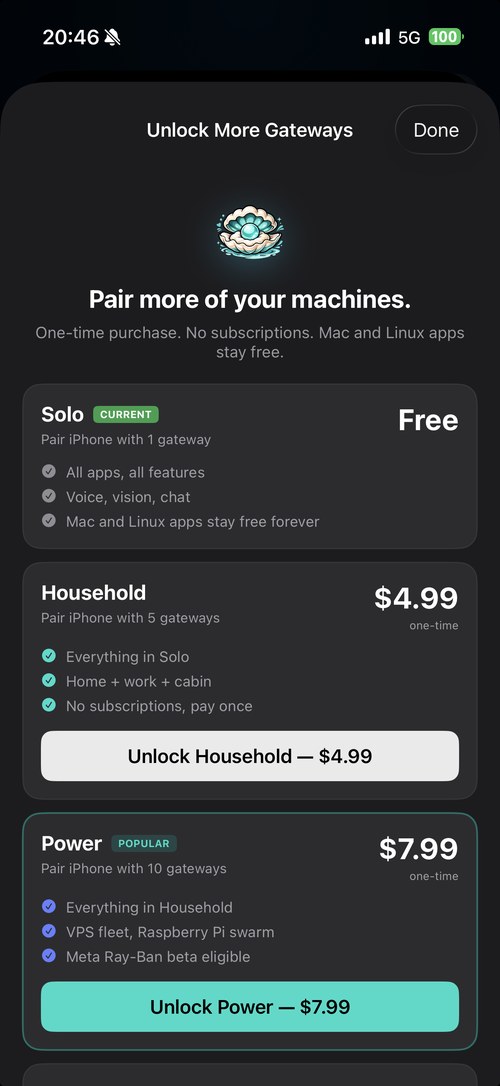
Solo is free — one gateway, every feature. If you want to pair more machines (home + work + cabin, or a VPS fleet), tap a paid tier. One-time purchase, no subscription.
- Solo — 1 gateway, free forever
- Household — 5 gateways, $4.99
- Power — 10 gateways, $7.99 · Meta Ray-Ban beta (later this year)
- Corporate — 50 gateways, $24.99 · Meta Ray-Ban beta (later this year)
Change your plan anytime from Settings → Plan. Existing paid tiers can upgrade without rebuying the full higher tier.
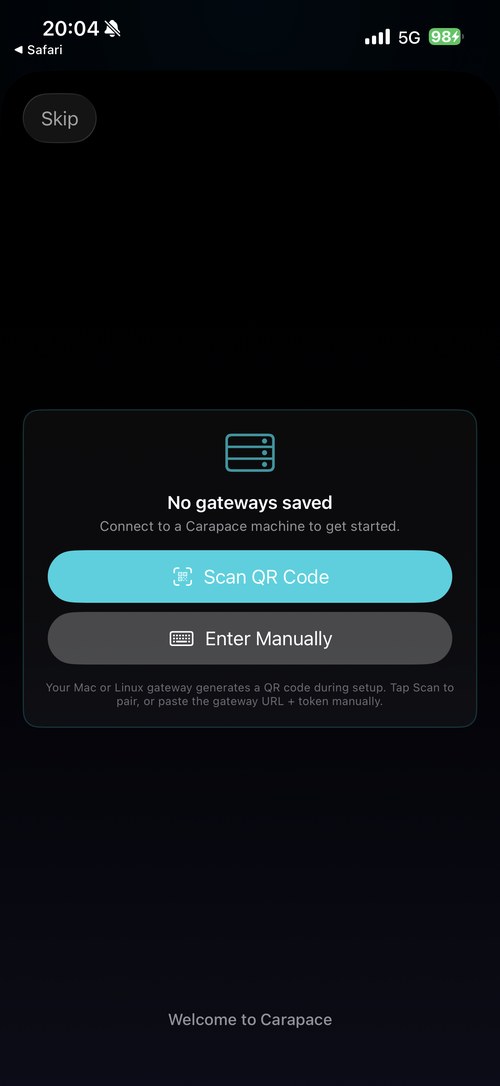
Scan the QR. Done.
Your gateway generates a pairing QR during setup (Mac Setup Wizard, Linux install script, or at any time from the Settings panel). Point the iPhone camera at it — the gateway URL + token land on your phone automatically.
- Mac: menu bar → Settings → Show QR Code
-
Linux / Pi: printed at the end of
install.sh, or runcarapace show-qr - No QR? Tap Enter Manually and paste the URL + token from your gateway's config
The pill on the home screen turns teal the moment the pair is healthy. If it stays red or orange, see support.